
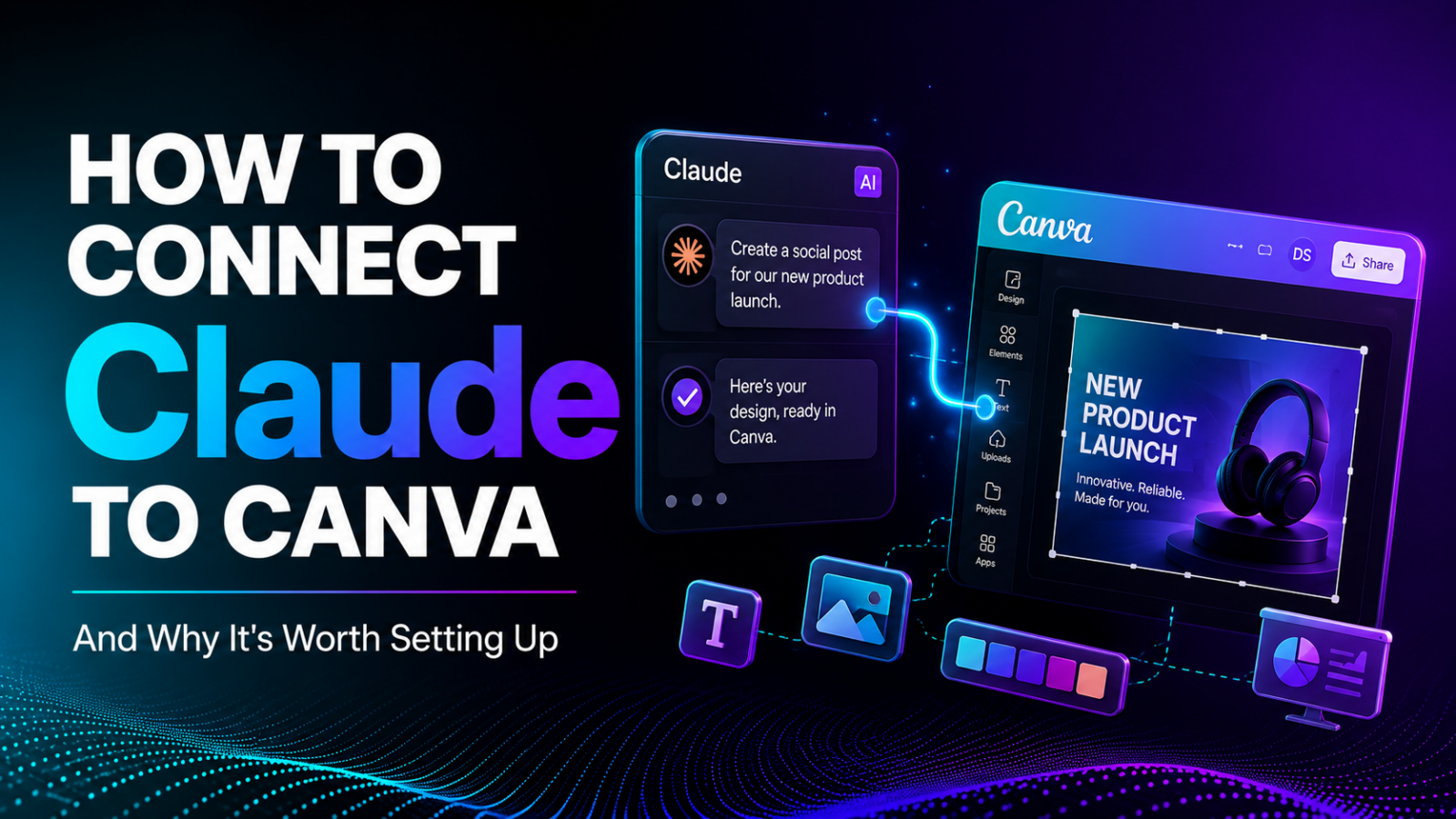
We use this exact setup ourselves for a lot of our content work, so this isn’t a theoretical guide. Connecting Claude to Canva takes a few minutes, and it genuinely changes how design work gets done, less tab-switching, less copying ideas back and forth, more just describing what you want.
What actually happens when you connect them
Once connected, Claude gets permission to work inside your Canva account directly. That means it can create new designs, search your existing ones, autofill your brand templates, and export finished files, all from inside a normal conversation, without you needing to open Canva yourself for every step.
Step by step: connecting Claude to Canva
- Open Settings, then Connectors. On claude.ai or in the Claude app, click your profile and find the Connectors section.
- Find Canva in the list and click Connect. It’s listed alongside other connectors like Google Drive and GitHub.
- Sign in to your Canva account and approve the connection. This grants Claude permission to read and write inside your Canva workspace.
- Back in a chat, toggle Canva on. The connector is enabled per conversation, so check the settings icon in the chat window and switch it on there too.
- Start asking. That’s genuinely it, you’re ready to generate or edit designs directly from the conversation.
Worth knowing: this works on the regular claude.ai web app. You don’t need Claude Desktop or Claude Code for this, just a Claude account and a Canva account.
What you can actually do once it’s connected
- Generate a new design from a plain-language brief, describe the look and content you want, and get real options back
- Autofill your own brand templates with new content, keeping your fonts, colours, and layout locked
- Search and browse your existing Canva designs without leaving the chat
- Resize a design for a different platform and export it as an image or PDF
- Give feedback in plain English, “make the headline bigger and use the accent colour,” and have Claude apply it directly
The one limitation worth knowing
Claude only acts when you ask it to. There’s no automatic trigger that tells it a campaign just launched or a new product page went live, so it won’t generate anything on its own in response to something happening elsewhere. It’s a tool you direct, not one that watches your business and reacts by itself.
Why this is worth setting up
If you’re doing any kind of regular content work, social posts, presentations, marketing graphics, the time saved from not constantly switching between a chat window and a design tool adds up fast. It’s a small setup cost for a change that compounds every single time you need a new design.
Where DDS fits in
This is genuinely part of how we run our own content pipeline, and it’s the same kind of practical AI setup we help clients put in place for their own social media and marketing workflows. Our services page covers how we approach this.
The bottom line
Connecting Claude to Canva takes a few minutes and removes a genuine amount of friction from regular design work. If you’re already using both tools separately, this is one of the more immediately useful setups you can make today.